

Just as we recently introduced a more streamlined way to manage your teams, you can now manage your organization just as easily. This product update streamlines your work as an administrator in Hartic.
Please note that you can have multiple Administrators in Hartic. Many customers choose to have one to three users with this system role specifically so that multiple people can manage the organizational tree.
You can find a user's profile by selecting Organization → Users from the menu. Then click on the desired profile in the list. You can easily access your own profile in the top-right corner of the application.
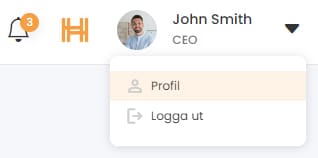
Manage your organization
To make a change, click the 🖋️ Edit button located at the top right of each profile page.
Under the heading " Organization ," you will find three main sections.
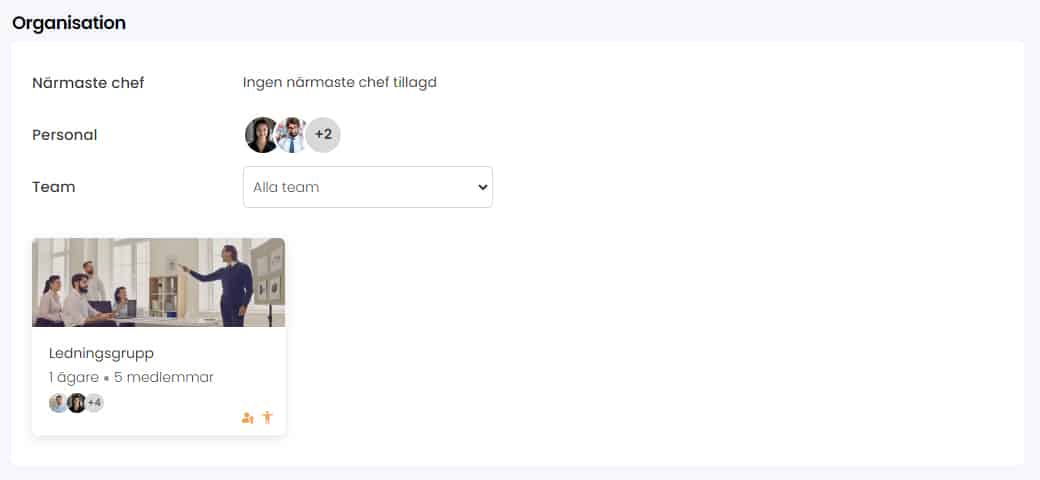
"Immediate supervisor " simply refers to the user's supervisor. To be assigned as an immediate supervisor, the person must have the "Manager" or "Administrator" system role. Check the box next to the user who should have this role. Can you select multiple supervisors? No, the system is designed so that a user can have only one immediate supervisor from an organizational standpoint.
Under the "Staff" tab, you will find all users in Hartic. Check the boxes next to the people who should be assigned to the profile you are currently viewing. Please note that the "Staff" tab is not visible to Employees, as they cannot have personnel responsibilities in the system.

At the bottom, you'll see the teams you own and/or are a member of .
Why is it important to have a well-structured organization?
For several reasons, it is important that you, as an Administrator, ensure that the relationships between users are set up correctly in Hartic. Not least, this enables Managers to work effectively with their employees and teams.
The popular " Well-being " feature is designed to ensure you have the right staff assigned to you, as you can only view results and comments for your own staff. Learn more about the feature here.

